What is WordPress
First things first, WordPress is a web framework mostly utilised by news outlets and bloggers.
It aims to remove the hassle of learning web development entirely and lets users focus solely on content creation. All pages, posts can be edited by an intuitive graphical editor.
This editor is designed to make use of HTML blocks in the background, and therefore it is usually worth researching how to structure web sites to make posts appealing. (I am not one to talk, I suck at designing)
Short guide into important blocks
When starting a new post you will be presented a blank page with some block already added.
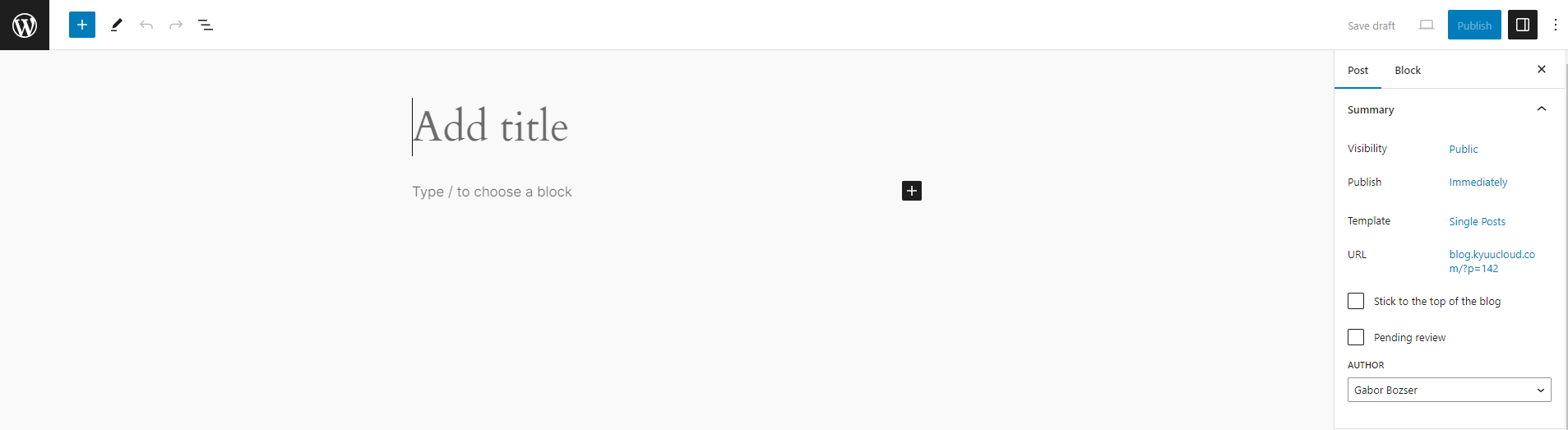
On the top left corner, clicking on the PLUS sign, the available blocks will be shown.
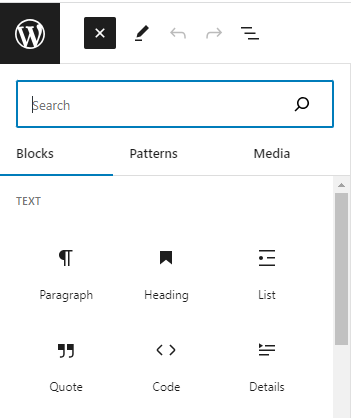
I wish to highlight some useful blocks for blog structuring.
Row
If you wish to have multiple elements shown side by side, first type “/row” or select it from the left list.
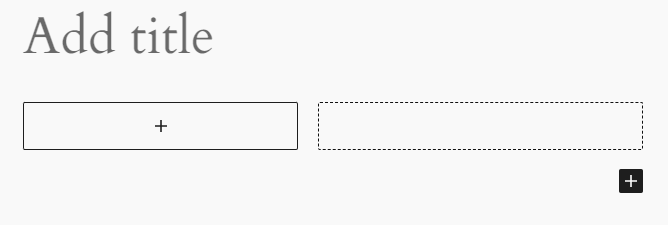
Now it is possible to have an image and text or multiple columns of text next to each other.
Please take note, that with a row, it is not possible to determine the size of each column. The website will try and adjust it automatically to make sure it can show the contents side by side.
Column
This is a much smarter system to make rows. You can pre-define the ratios of the width for each columns of the total display area size.

There is an added benefit of this block: It is possible to set the columns to collapse into multiple vertical sections for mobile screens.
Headings and paragraphs
These are the main text holding blocks. Headings just like with Microsoft Word, range from the Heading 1 (H1) to Heading (H7) to accommodate subsections. You can create a heading by typing “/heading”. Clicking on the resulting block will have a pop up menu where the header can be chosen.
Paragraphs hold sections of texts. Outside of structural blocks just typing anything without “/” will result in a paragraph block, however within rows and columns paragraphs must be explicitly added by clicking the plus sign.
Images
Last but not least, blogs need images to make them easier to consume.
Typing “/image” will create a pop up window, prompting the author to upload an image or to use on from the media storage of the website, or use a URL from an online source.
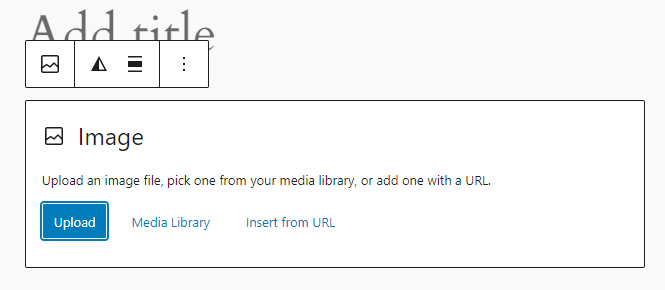
As soon as the image is uploaded it will be shown in in the post.
Conclusion
I hope these main blocks will let you get started on your blogging journey. If time allows, make sure to check out the list of blocks from the editor. WordPress provides explanations to all the blocks.
Can’t wait to see what you can create!
Leave a Reply
You must be logged in to post a comment.